
Conference Room Video Collaboration Solution (UCC)
Centered on the MS-M20 meeting collaboration hub, paired with the 4K camera MS-C3 and omnidirectional speakerphone MS-S8, employees can connect to leading video conferencing apps with a single click from their laptops while leveraging professional audio and video peripherals in the room.
Get Full Solution
Why does a meeting room need a UCC solution?
Unified Communications and Collaboration (UCC) integrates professional conference room hardware—such as HD cameras, microphones, speakers, and large displays—with popular video conferencing apps like Tencent Meeting, Teams, Zoom, and DingTalk. Step into the room and start a meeting instantly with crystal-clear audio and sharp video.
Historically, conference room audio-visual systems were closed ecosystems, limited to internal network meetings or simple screen sharing. Today, employees prefer using their own laptops for hybrid remote meetings—a model known as BYOM (Bring Your Own Meeting). UCC addresses the core challenge: enabling personal computers to seamlessly access and control all room-based AV peripherals.
Retrofit Cost
Upgrading traditional small meeting rooms or reception areas into hardware-based video conferencing spaces requires significant investment and construction effort.
Local Experience
Using a laptop for meetings limits audio and video quality when multiple people join locally.
Peripheral Access
When joining a meeting with your own device, it's often impossible to access the room's camera, microphone, and speakers.
Source Switch
Manual cable plugging and unplugging for meetings, screen sharing, and video source switching disrupt meeting flow.
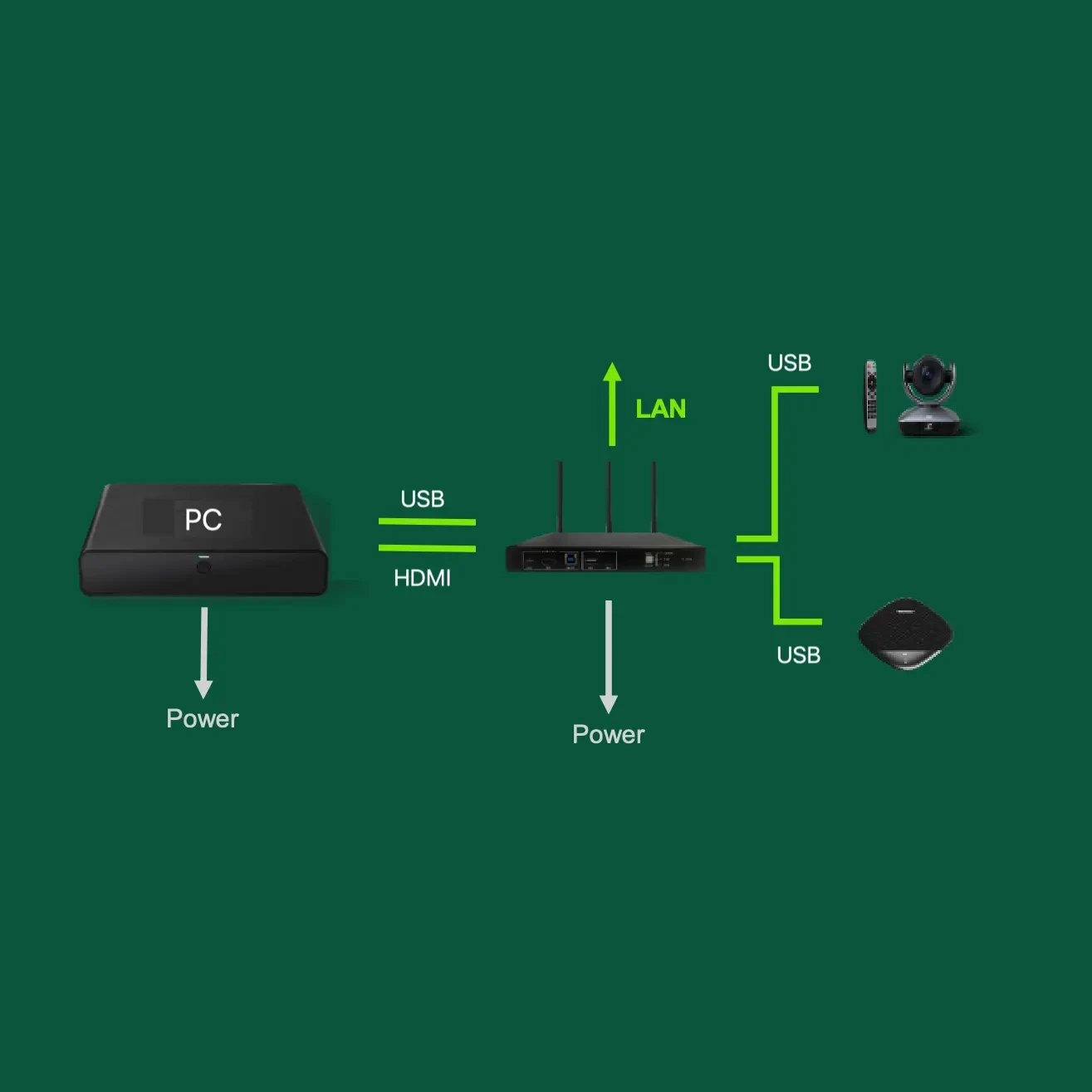
Solution components: Host + Camera + Omnidirectional Microphone
The solution comprises three core devices: the Meeting Collaboration Host for signal aggregation and switching, cameras for image capture, and omnidirectional microphone-speaker units for audio pickup and playback. Simple cabling enables plug-and-play setup.
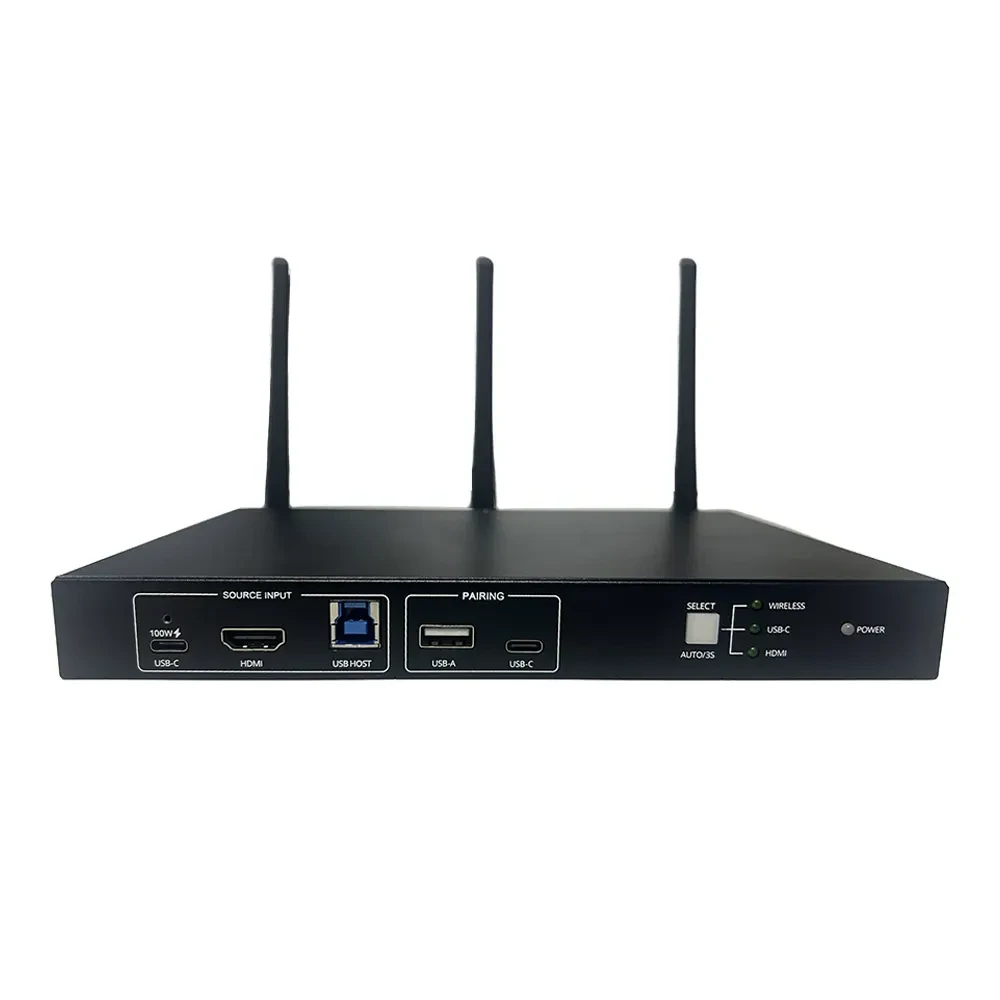
MS-M20 Conference Collaboration Host
Wired (USB-C and HDMI) screen sharing and video conferencing with USB-C reverse charging; supports native protocols, 4K transmitter and client wireless screen sharing, and intelligent quad-screen layout. Supports source switching, smart EDID, HDCP management, RS232 control, network passthrough, and WebGUI configuration.
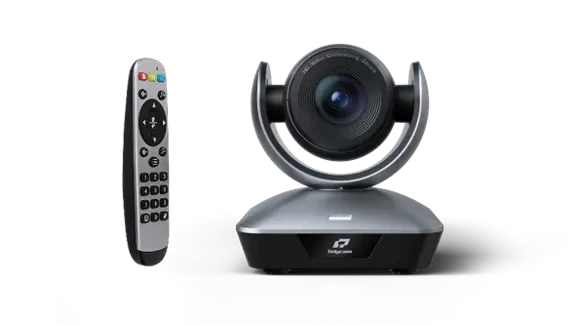
MS-C3 4K Camera
4K30 clarity with auto-framing, 3x optical + 12x digital zoom, and 90° ultra-wide field of view. Dual USB and HDMI outputs; single USB-C cable delivers power, control, and video. Smooth gimbal movement and plug-and-play setup.
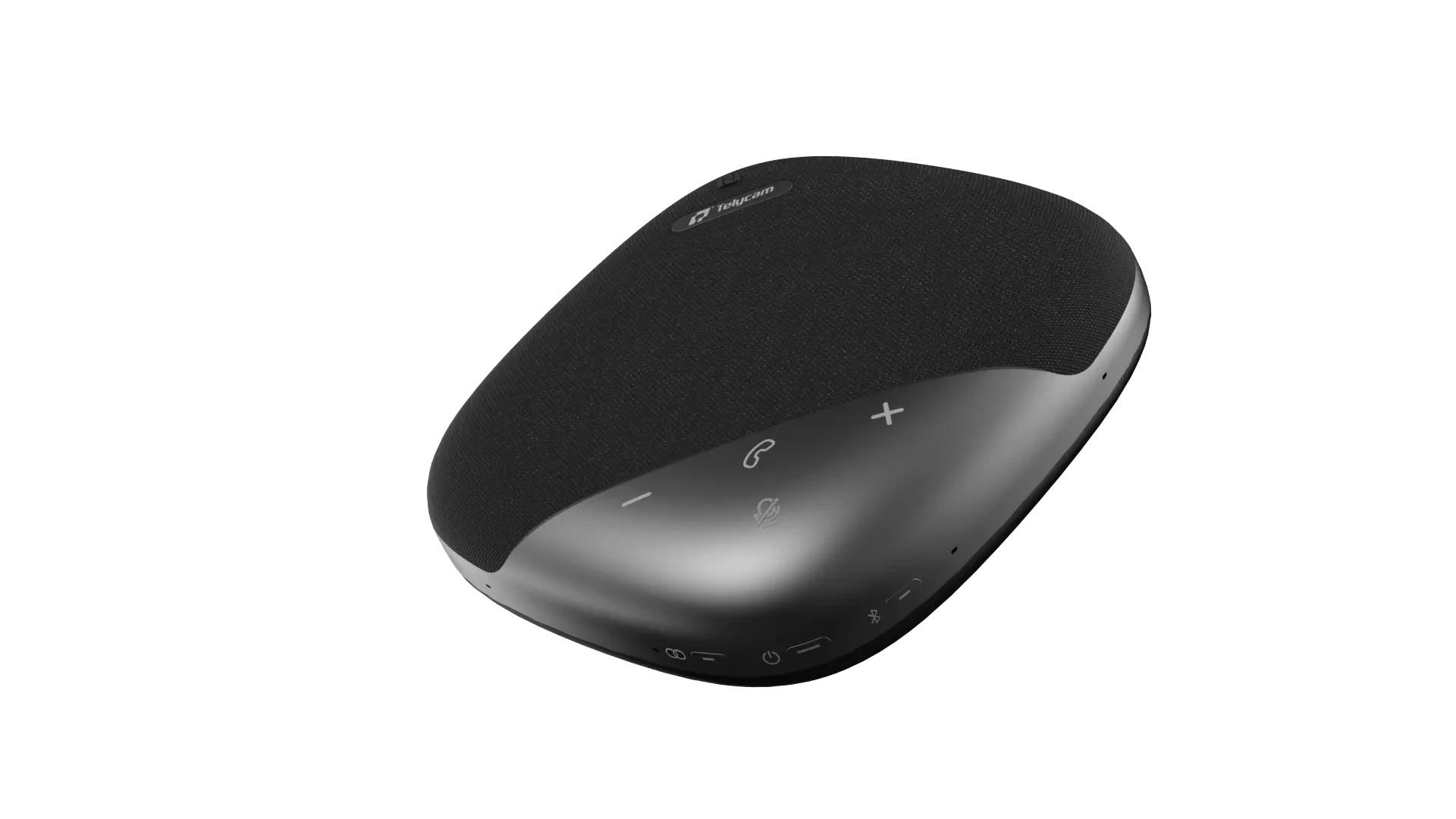
MS-S8 Omni-directional Microphone Speaker
Intelligently adapts sound modes and features a high-capacity battery. AI noise reduction with automatic DOA voice direction detection ensures clear pickup from every seat around the conference table.
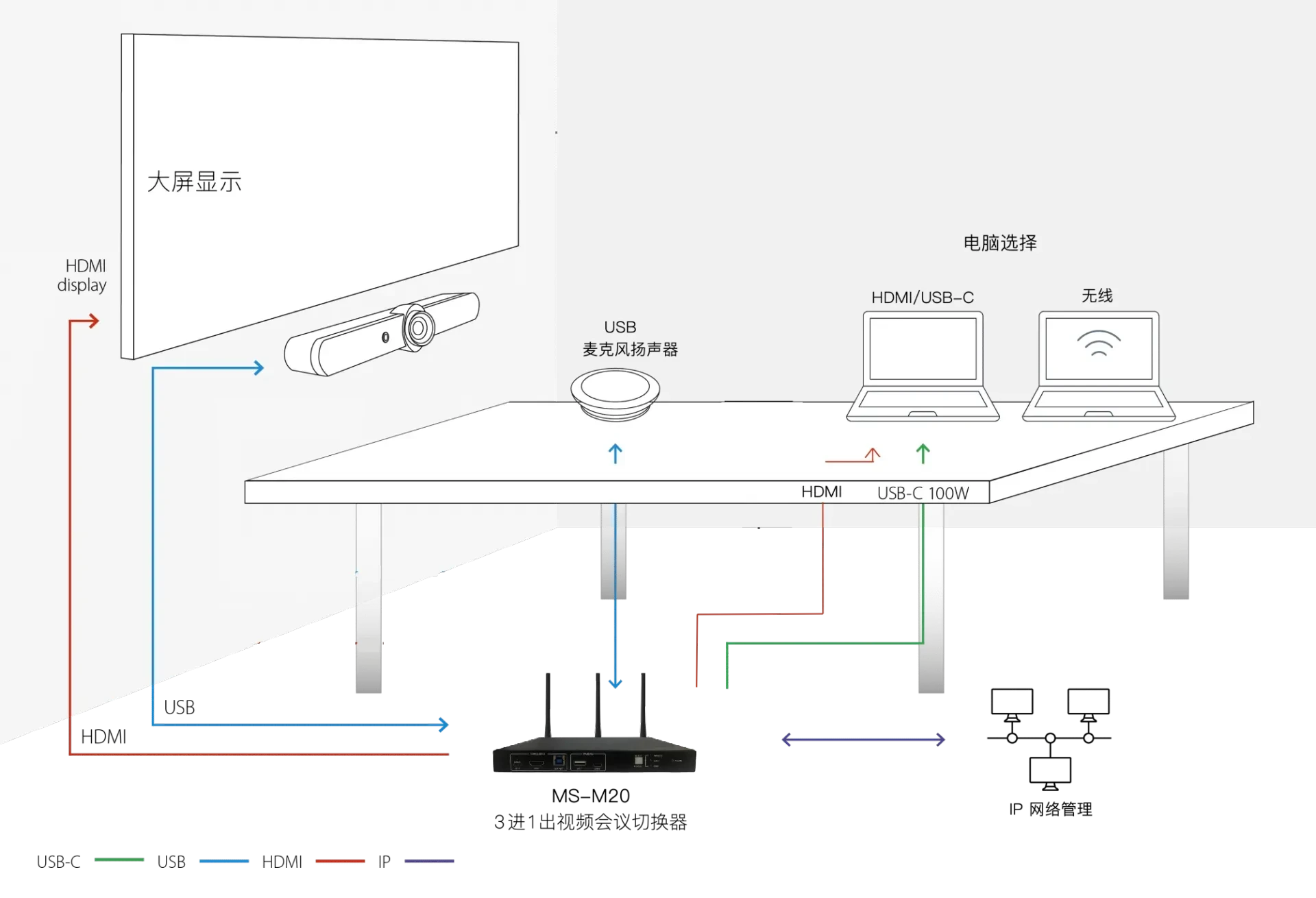
Connect & Deploy
MS-M20 connects to conference room displays or projectors via HDMI; MS-C3 and MS-S8 connect to the host via USB. Once the host is connected to the corporate network, the system is ready to use. A single USB-C cable links each participant's laptop, eliminating the need for repeated plugging and unplugging before meetings.
Display Output
HDMI output from host to large screen, TV, or projector; supports 4K displays.
Video Capture
The MS-C3 connects to the host via USB and displays directly through your meeting software.
Audio Capture
The MS-S8 handles desktop audio pickup and amplification with full-coverage support.
Connect to laptop
Attendees can connect to the host via a single USB-C cable to mirror their screen and access peripherals.
Network Access
The host connects to the enterprise network, enabling wired screen sharing or video conferencing with network passthrough support.
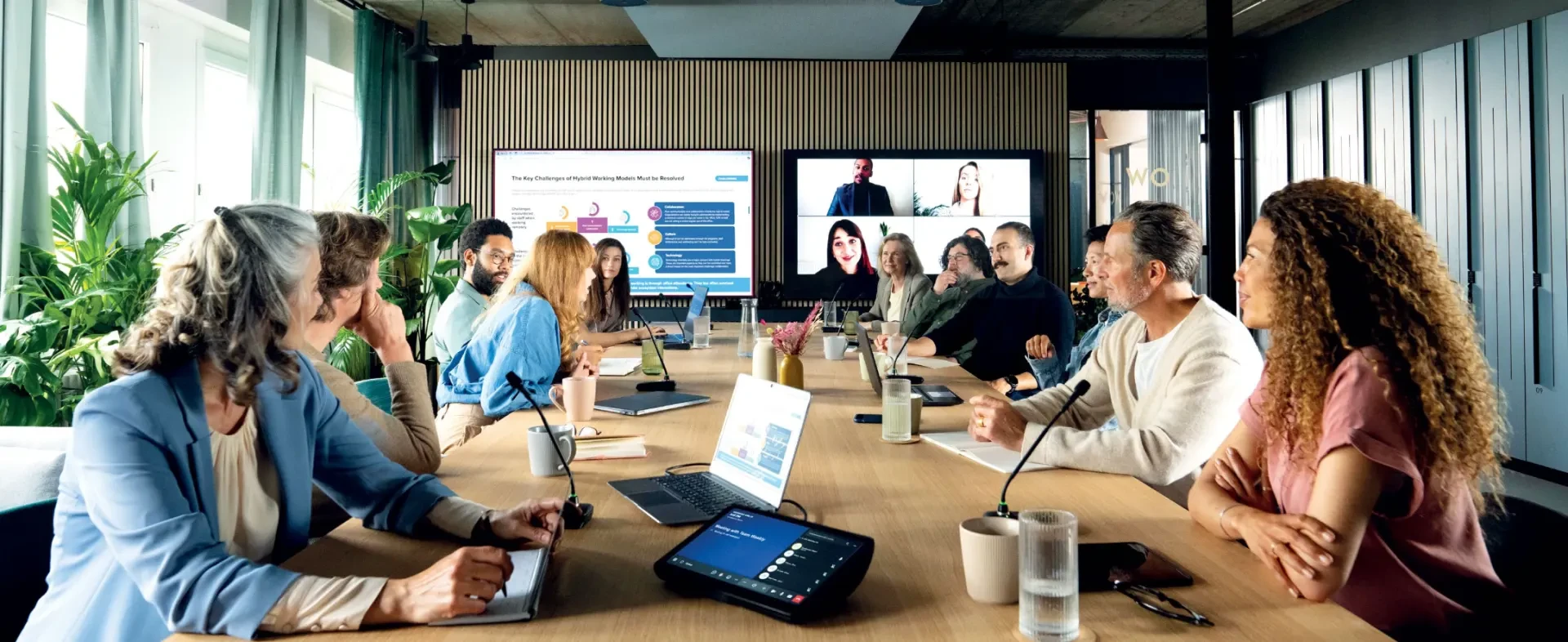
Meeting mode: Bring your own meeting
Employees open their laptops, connect an MS-M20 via a USB-C cable, and select the conference room's camera and microphone in Tencent Meeting, Teams, Zoom, or DingTalk to start meetings with the room's video and audio.
For local discussions, the same host supports both wired and wireless screen sharing. Multiple signal sources can be displayed simultaneously in a customizable layout, enabling presentations and remote meetings on a single device.
Join BYOM
Personal computers can directly access conference room cameras, microphones, and speakers without requiring on-site IT support.
Wired Screen sharing
Connect via USB-C or HDMI to share your screen and charge your laptop at the same time.
Wireless screen sharing
The native protocol, transmitter, and client all support screen sharing with intelligent 4-way signal layout.
Content Control
Support reverse PC control, sidebar content management, and whiteboard annotation with save.
Solution Benefits
Content collaboration at its core
Supports digital multimedia content display, sharing, and collaborative interaction across diverse meeting and training spaces.
BYOD and BYOM Concepts
Host local or remote discussion meetings on your PC or mobile device without needing on-site IT support.
Multi-stream Routing
Join meetings with multiple input methods and display content across various screen types.
Hardware-software integration
Integrates video conferencing software with peripherals like cameras and microphones, allowing local and remote participants to view shared files simultaneously.
Integrate with existing systems
Integrates AV devices such as switchers, KVMs, controllers, and encoders/decoders into the conference system as nodes.
Protect existing investments
Seamlessly integrate with your existing conference system, enabling BYOM devices to leverage current peripherals without a full replacement.

Use Cases
Small video conference and meeting rooms can be upgraded via plug-and-play or simple cabling. For standard conference rooms with existing systems, the Rayhunt UCC can be integrated as a node to enable seamless video source switching.
Small video conference room
Share screens and host video conferences via wired or wireless connections. Access peripherals from multiple signal sources.
Conference Room Renovation
Get conference-grade visuals and audio without major construction.
Standard Conference Room Link
Integrates with existing conference systems to resolve BYOM device peripheral access issues.
Associate Products with Solution
The following products form the core hardware and platform capabilities of this solution.
Need to match the right products and solutions for your project?
Share your application scenarios, user needs, and network environment. Our technical team will provide selection recommendations, design solutions, and schedule prototype testing.